font-family: 'carbona-variable', sans-serif; font-variation-settings: 'slnt' 0, 'MONO' 0, 'wght' 700;font-family: 'marydale', sans-serif; font-weight: 400; font-style: normal;

CASE STUDY

Qu Notify App

From a developer-built wall of numbers to an app that shows managers how their kitchen is performing.

ROLE

Lead Product Designer

TEAM

PM, 5 Developers, 2 QA

PLATFORM

Mobile App (iOS & Android)

TIMELINE

3 Months

OUTCOME

Redesigned Notify's navigation, made it the first product on Qu's new design system, and designed the
External Data states that helped close the Shake Shack deal.

01

Overview

As lead designer, I made Notify simpler to navigate, gave it its first layer of kitchen insight, and designed data states that helped close an enterprise deal. The goal: an app managers return to, with a dashboard to check the day, trends to understand it, and, next, suggestions for what to change.

02

Problem

Built by developers as a data screen, Notify got a glance and a goodbye. A figure like −7.4% never said whether it was good or bad, why it happened, or what to do next.

Managers had the data. They didn't have the answer.

The comparison trap A large minus 7.4 percent sales figure sits in the center. Three dashed bubbles asking weather, promo and short-staffed orbit it, and none of them gives an answer. NET SALES VS. PRIOR DAY-7.4%PRIORTODAY19,88018,402?Weather?%A promo?Short-staffed?

03

Approach

Question the purpose.

Asked what the data was for. That became the vision I led: from a data display to a performance tracker.

Rebrand incrementally.

First product on Qu’s new design system, shipped in chunks with regular tickets.

Fix how people decide.

Audited every screen, unified conflicting patterns, and ranked fixes with the team each sprint.

Add the first layer of insight.

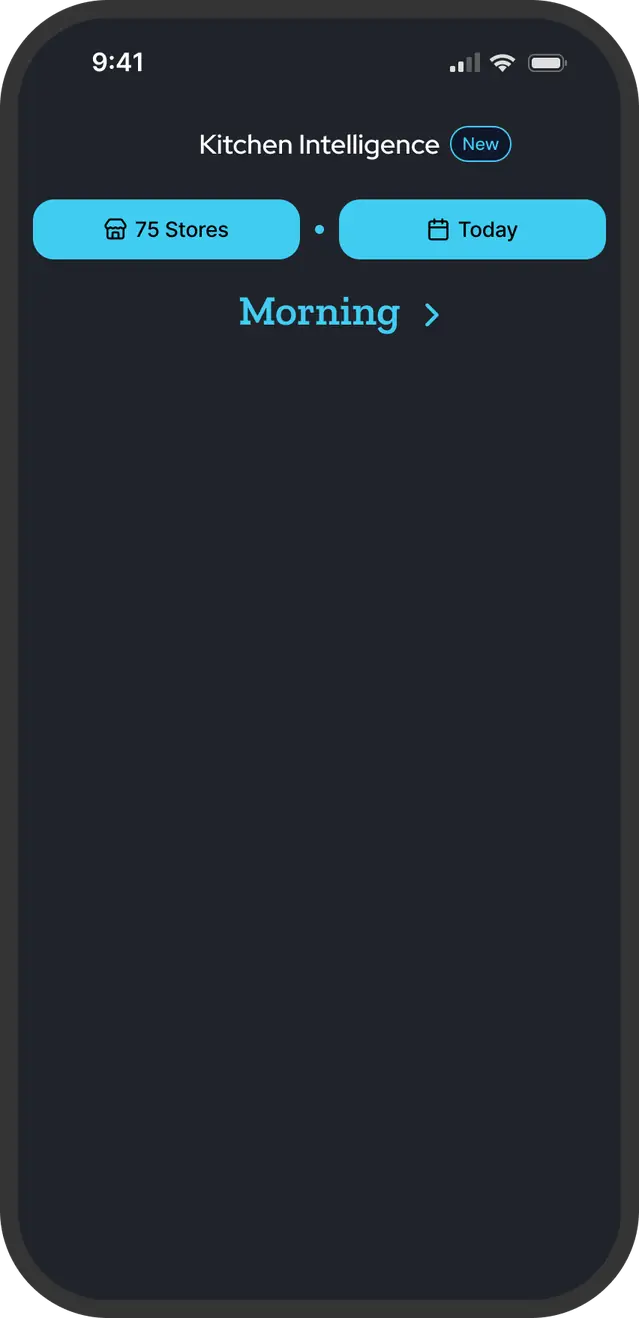
Defined Kitchen Intelligence, designed Performance Trends and the External Data states.

The new brand became Notify's UI foundation

Notify was the first product built on the rebrand's system

The direction

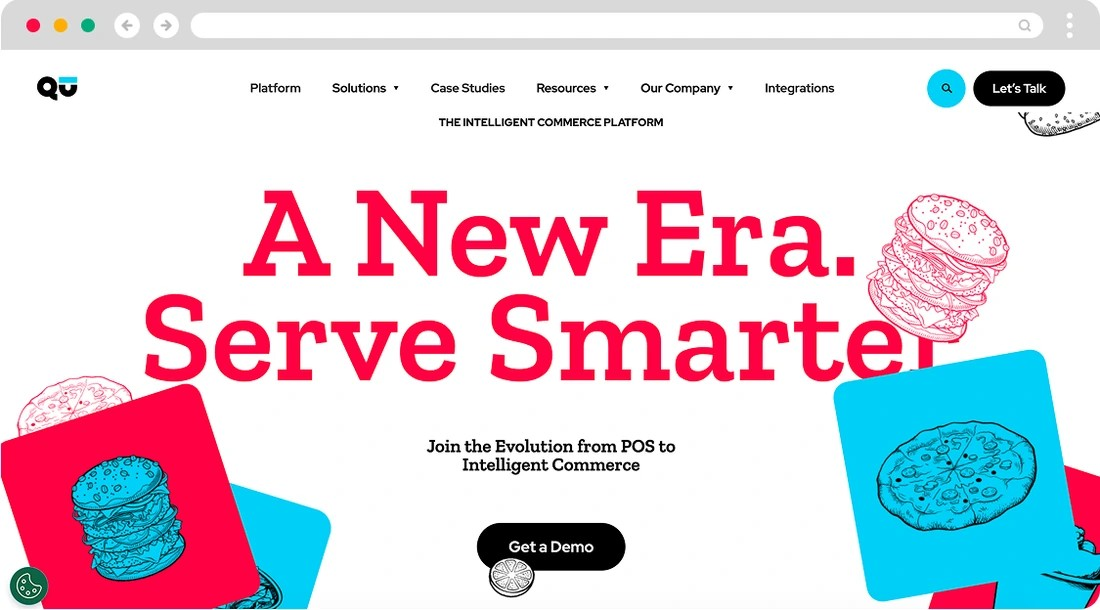
Qu's new website homepage with a bold slab headline, red and blue color blocks and hand-drawn food illustrations

Qu's new website, the guide for Notify's colors, type and illustration

Palette

Beyond Red#EF2249
Tech Blue#40CCF2

Headlines

Serve Smarter.

Zilla Slab

Body

Red Hat Text for body copy, labels and captions.

Translated into Notify's tokens and components

In Notify

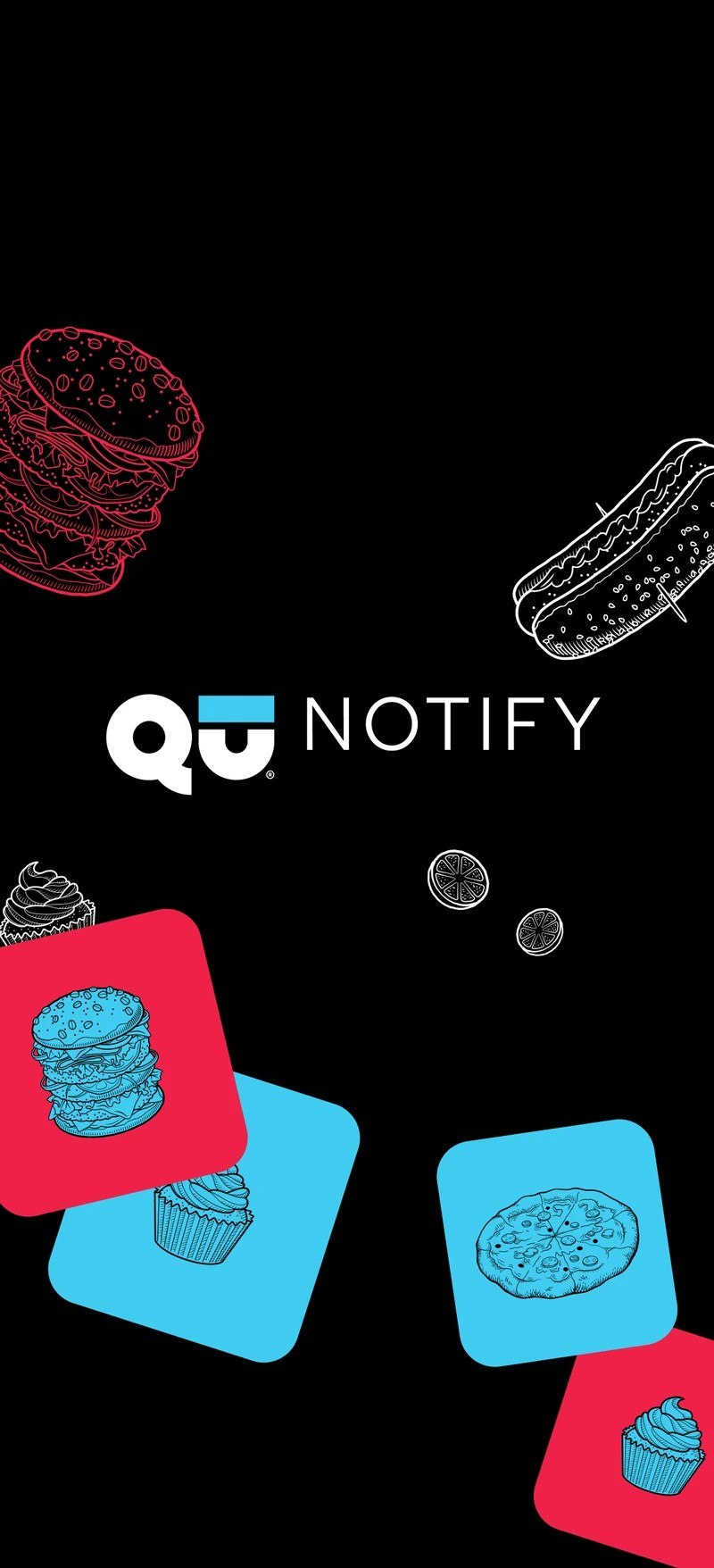
Notify splash screen with the brand's hand-drawn food illustrations on colored tiles
01 · IllustrationIllustration styleThe site's hand-drawn food art carries onto the splash.
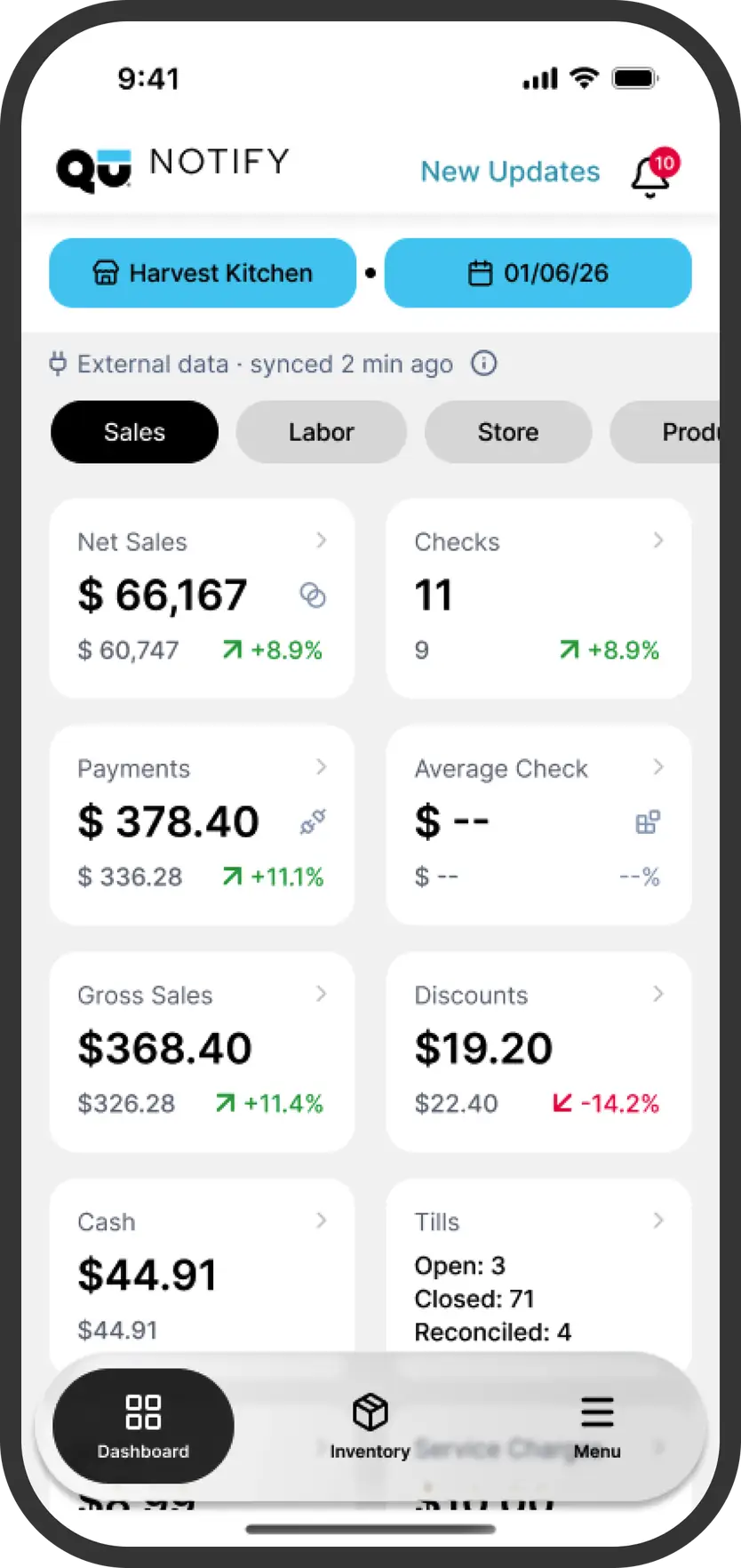
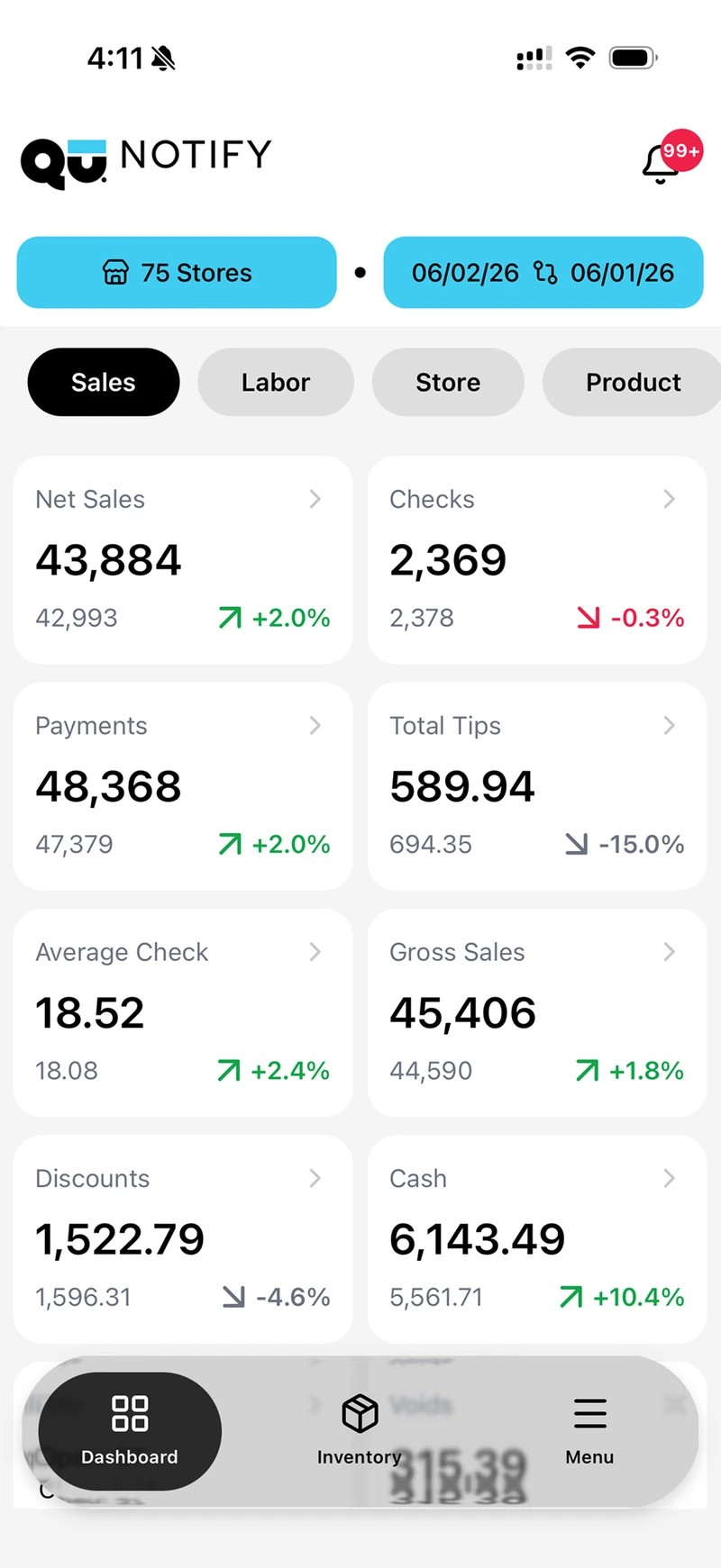
Notify dashboard with Tech Blue store and date selectors
02 · ColorTech Blue controlsThe brand blue leads the selectors on a clean white surface.

Every idea ranked, and design flagged where it was needed

The Notify roadmap I prioritized with the PM, one quarter at a time

NotifyQ4 2026PendingAlerts | Show relevant details of the alert in the Notify push n…Unsure
NotifyQ4 2026PendingAlerts | Reduce clicks between an alert and its drilldown by …Yes
NotifyQ4 2026ReadyAlerts | Receive a Notification in Notify When an Item is Out …No
NotifyQ4 2026ReadyNew Metric Tile | Return ItemsNo
NotifyQ4 2026ReadyKitchen Intelligence | 2 New Metric TilesYes
NotifyQ4 2026ReadyDrilldowns | Add Dimensional Filters (i.e. order channel, orde…Yes
NotifyQ4 2026ReadyCheck Search | Add Search Bar & FilteringYes
NotifyQ4 2026ReadyProduct | Add Search Bar & Sort DirectionYes
NotifyQ4 2026ReadyProduct | Increase Count & Add PaginationYes
Design neededYes: design in scope · No: engineering-ready · Unsure: to triage with the PM

04

Key decisions

DECISION 1

Bring navigation to the bottom of the screen.

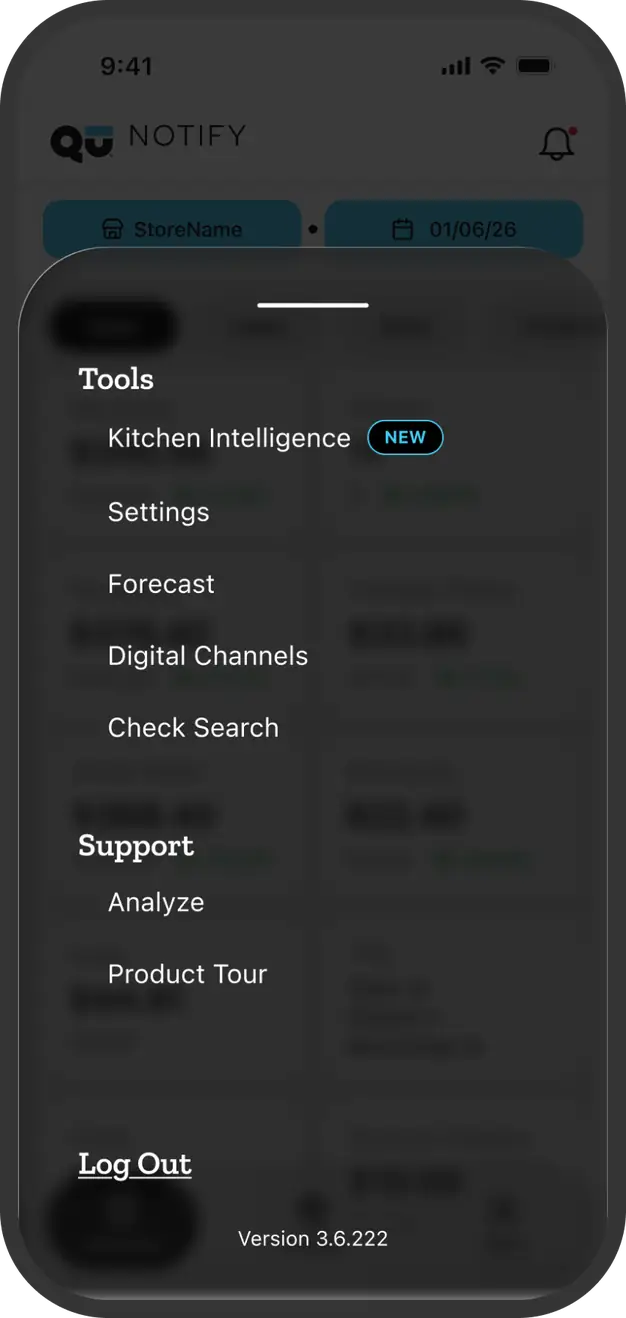
A three-item bottom bar, Dashboard, Inventory and Menu, replaced the buried drawer. 
Everything else was regrouped under Menu.

Where every destination went

Ten drawer items, regrouped by how managers use them

Before · one drawer

DashboardBottom bar
AlertsHeader
Check SearchTools
AnalyzeSupport
ForecastTools
Digital ChannelsTools
InventoryBottom bar
ConfigureTools
Product TourSupport
Log OutMenu

After

● Bottom bar
Dashboard Inventory Menu
● Header
New Updates Alerts and updates in one place
● Menu · Tools
Kitchen Intelligence · New Settings Forecast Digital Channels Check Search
● Menu · Support
Analyze Product Tour
Log Out stays at the bottom of the menu

BEFORE AND AFTER · DRAG TO COMPARE

001 002

DECISION 2

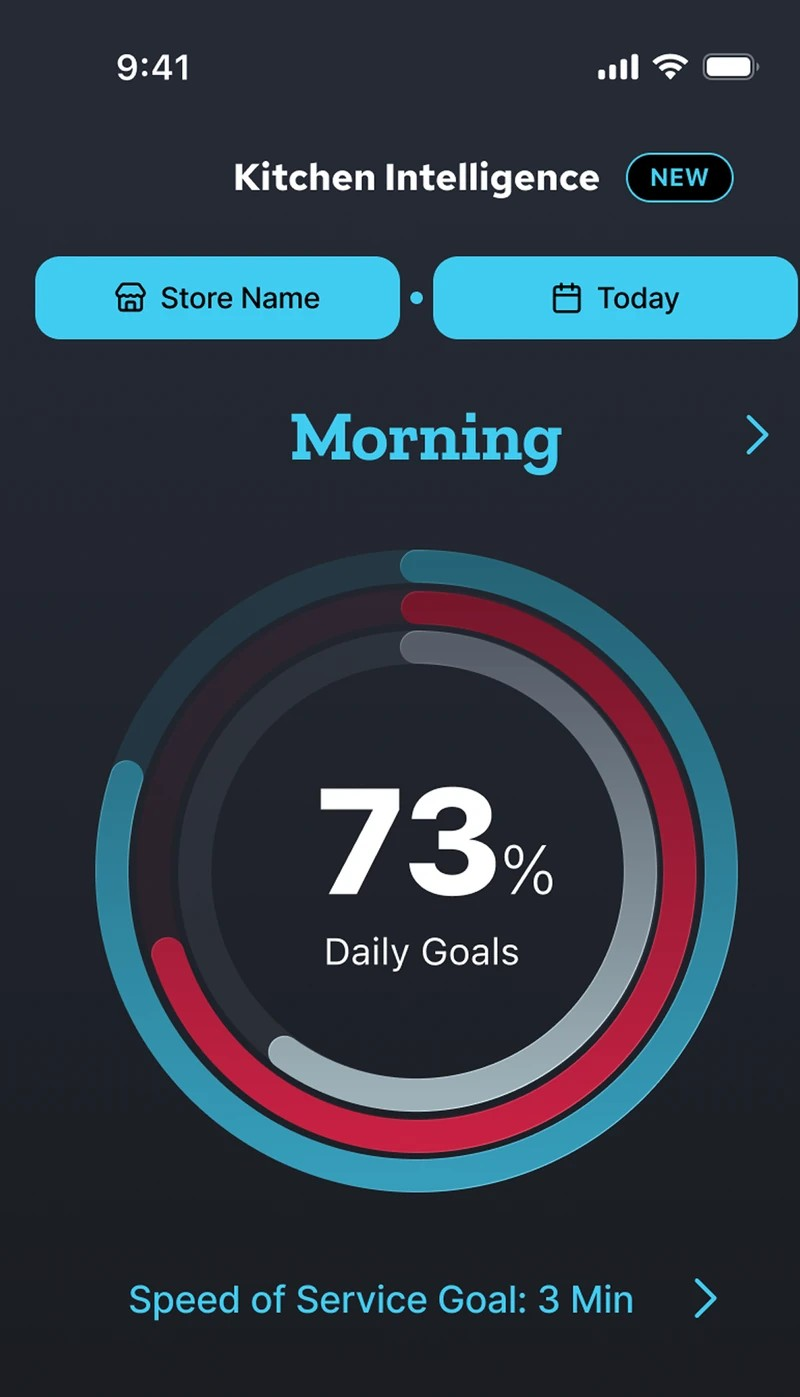
Lead with one score and one sentence, not more charts.

A daily score and a plain-language summary. I explored carousels, a scalable stack and tiles, and chose the stack so the screen can keep growing.

From numbers to a verdict, then to the pattern

Kitchen Intelligence and Performance Trends

Kitchen Intelligence screen with a daily goals score ring
01 · InsightOne score for the dayOne score and one sentence, so a manager knows how the day went.
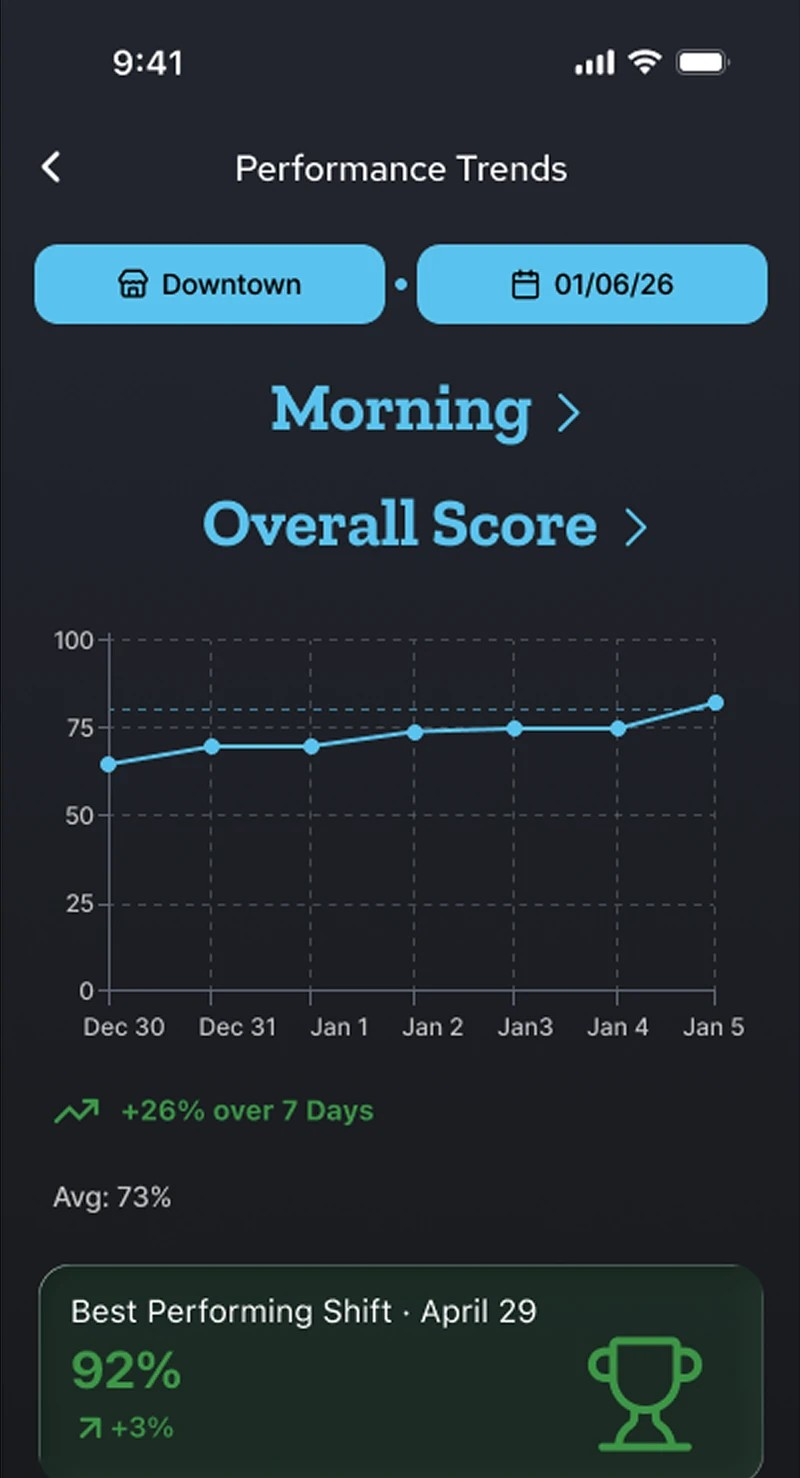
Performance Trends screen with a seven-day score chart and best-shift card
02 · TrendsBest and worst shiftsFilter by daypart, store and date range.
QU NOTIFY · KITCHEN INTELLIGENCE
01 · Dashboard
Open the menu
02 · Menu
Kitchen Intelligence lives under Tools
03 · Kitchen Intelligence
The Kitchen Score, at a glance
04 · Performance Trends
Follow the score over time
05 · Performance Trends
Spot the best and toughest shifts

DECISION 3

Show merged legacy data honestly.

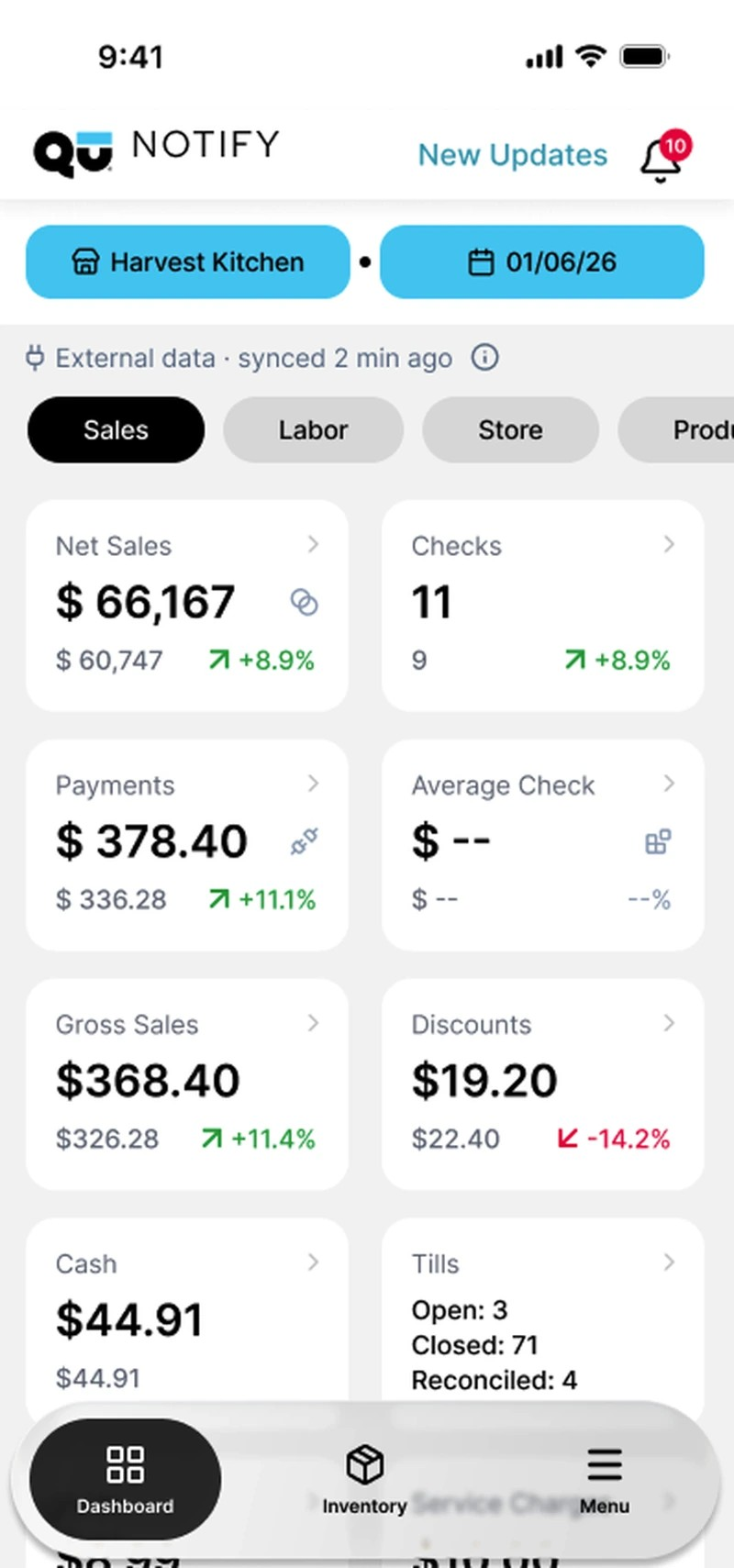
Shake Shack was moving its full stack to Qu, and needed to trust reports that mixed old and new data. Hiding the gaps would look cleaner, but one wrong number would undermine every other one. I marked each figure as partial, unavailable or merged with an icon, explained in a single legend, plus a refresh action for unsynced data. Shake Shack’s stakeholders validated it.

Every number says where it came from

Data states for a platform migration

In the report

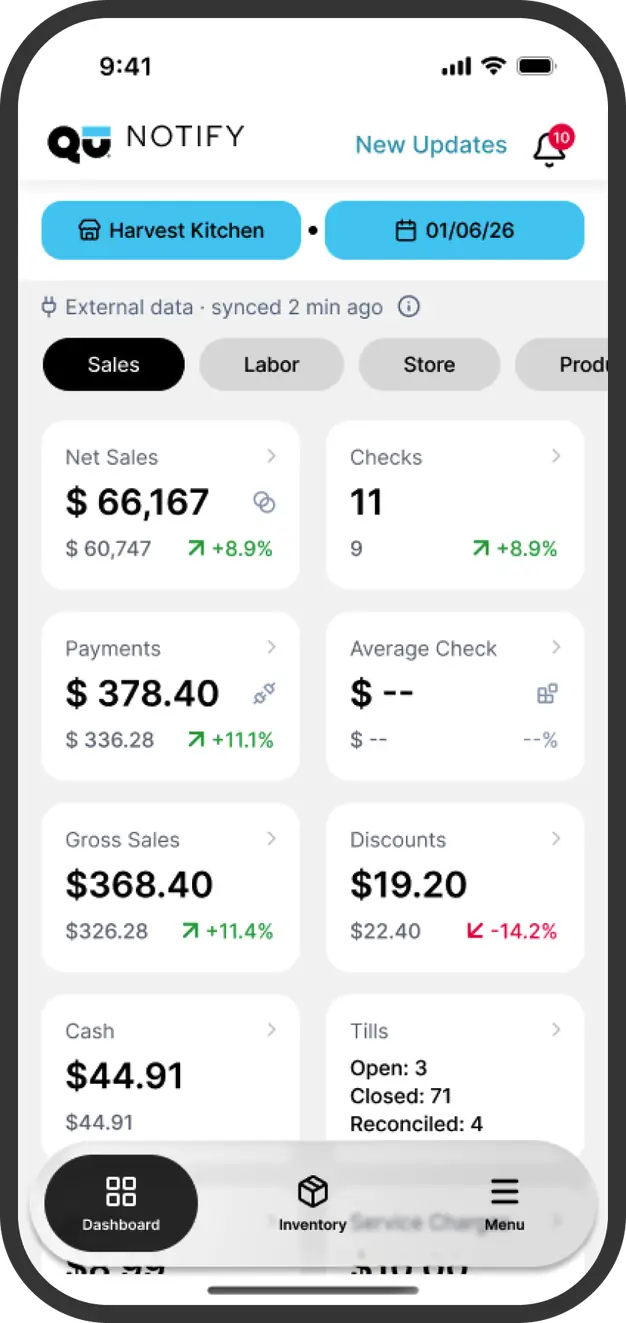
Notify dashboard with an external data banner and state icons on the metric tiles

What each state means

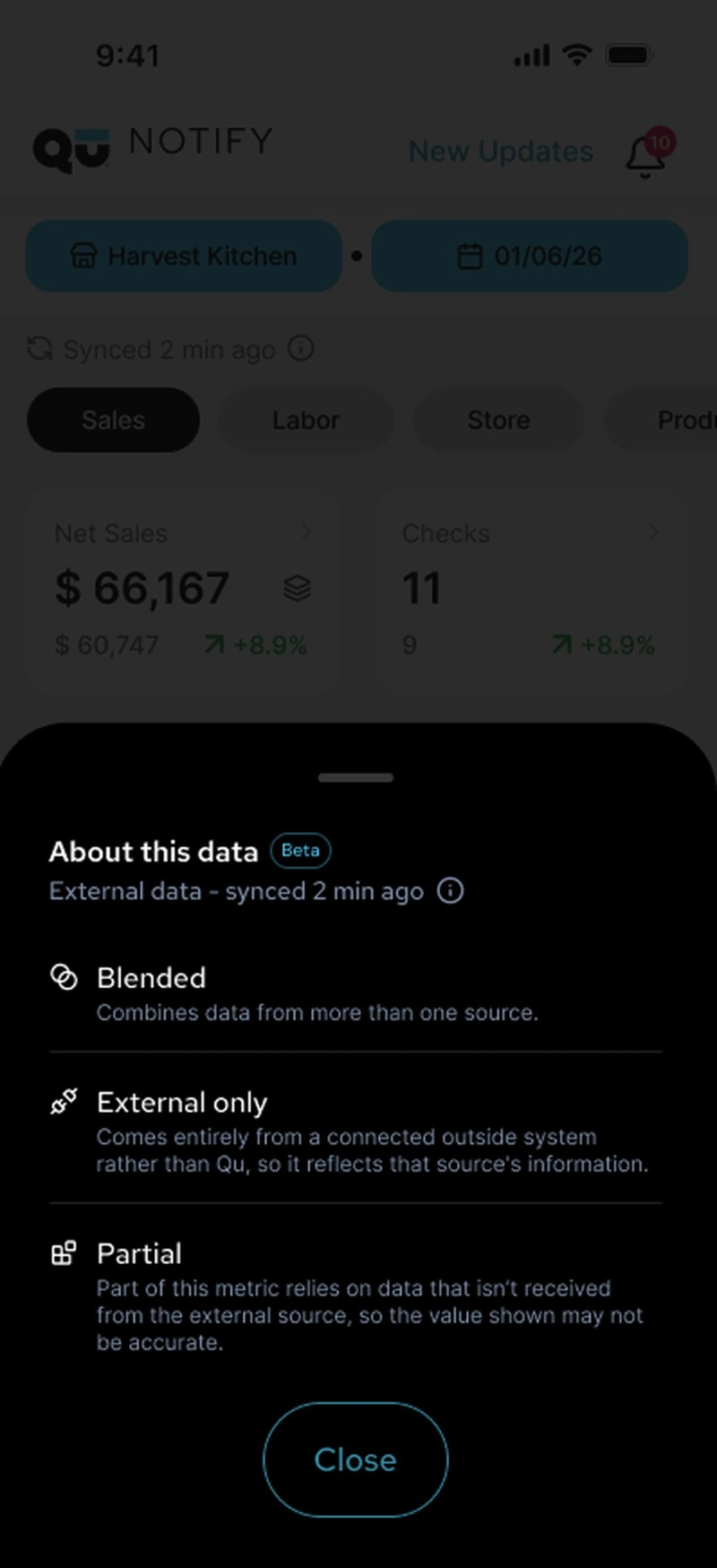
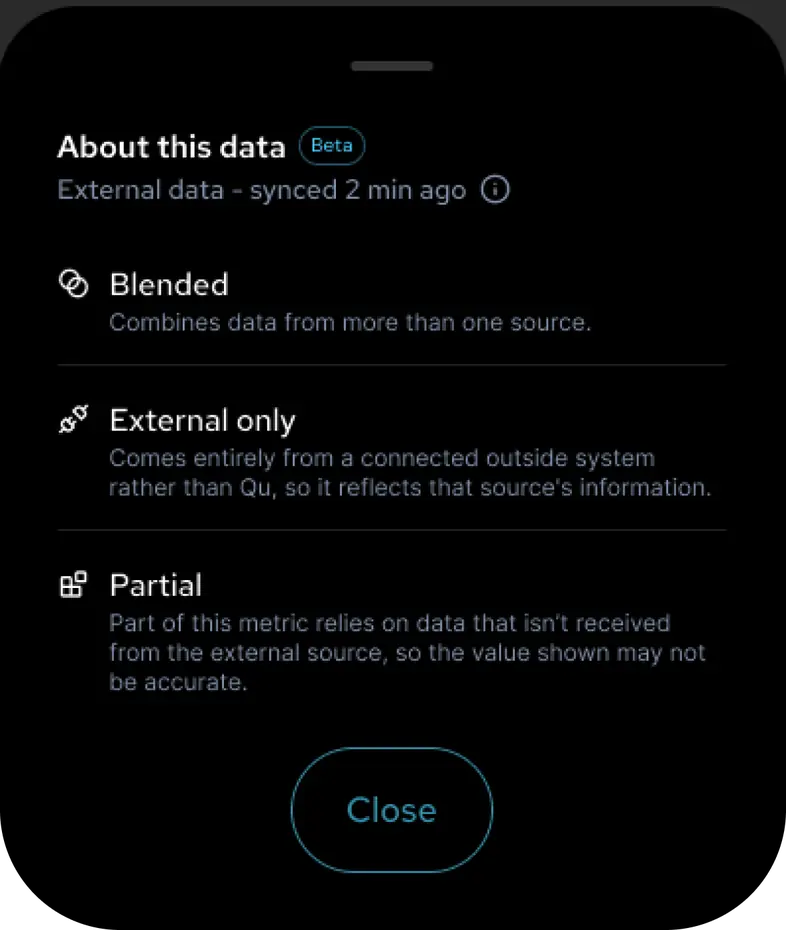
About this data sheet explaining the Blended, External only and Partial states

Source and refresh

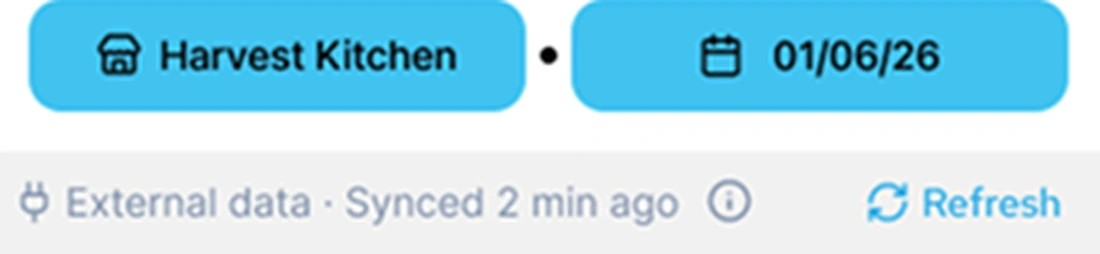
Banner reading External data, synced 2 min ago, with a Refresh action
Source bannerEvery report says where its data comes from and when it last synced.
Markers on the numbersAn icon on each affected figure marks it as Blended, External only or Partial.
RefreshOne tap to sync again, so managers are never left guessing.
About this dataA sheet explains each state in plain language.
QU NOTIFY · EXTERNAL DATA
01 · Dashboard
External data is flagged right on the dashboard
Tap the info icon to see where the numbers come from.
02 · About this data
Open it to see what each icon means
“About this data” (Beta) · External data – synced 2 min ago. It lists three labels: Blended, External only and Partial.
03 · Icon legend
Blended
Combines data from more than one source.
03 · Icon legend
External only
Comes entirely from a connected outside system rather than Qu, so it reflects that source’s information.
03 · Icon legend
Partial
Part of this metric relies on data that isn’t received from the external source, so the value shown may not be accurate.

05

Outcome

Launched

The new navigation, menu and selectors are live for all Notify customers.

Handed to engineering

Kitchen Intelligence and Performance Trends. I scoped and designed both, and development was underway.

Shipped

External data states, validated with Shake Shack. They helped close the enterprise deal with Qu.

06

Leadership

DIRECTION

Set the product direction.

Reframed Notify from a data display to a performance tracker, and turned Kitchen Intelligence from an open question into a scoped feature.

FOUNDATION

Built shared foundations.

Co-created Qu’s first global design system, adopted by Enterprise Intelligence, Notify and Qu Order Management, and aligned with the branding team so Notify could build on the rebrand first.

TRUST

Earned stakeholders’ trust.

Validated the data states with Shake Shack’s stakeholders before development, and prioritized the roadmap with the PM.

© 2026 Joao Medeiros